


You can close a Shopify store from the Shopify admin by opening Settings, selecting Plan, choosing Deactivate store, selecting a reason, and confirming with your password. Before you deactivate the store, export important store data, settle outstanding charges, review domains and apps, and decide whether deactivation or a temporary pause better fits your situation.
What to Do Before You Delete Shopify Store
Before you delete Shopify store access, protect information that you may need later. Shopify stores can contain years of orders, customer records, product details, reports, and configuration data, so create your own copies before deactivation.
Back up your important data, including:
- Products and inventory through CSV exports
- Customer information and order records
- Financial and sales reports
- Important store content and files
- Domain and app information
Store the exported files somewhere secure. A cloud storage service can provide a separate copy that does not depend on your Shopify account.
Review Shopify Billing and App Charges
Check Shopify billing before you close the store. Pay outstanding subscription fees and review app charges or third-party services that may bill you separately.
Deactivation removes Shopify access to the store, but third-party subscriptions may require separate cancellation. Review payment providers, domain services, email tools, shipping services, and other recurring charges before you finish the process.
Deactivate Instead of Deleting When You Are Unsure
If you may return to ecommerce later, deactivate the store instead of treating closure as permanent account deletion. Shopify retains store data for two years after deactivation, according to the provided Shopify guidance, which allows the store to be reactivated by choosing a new plan during that period.
A pause option can suit merchants who need a temporary break. Compare the available plan options in your Shopify admin before choosing permanent closure.
How to Delete Shopify Store Step by Step
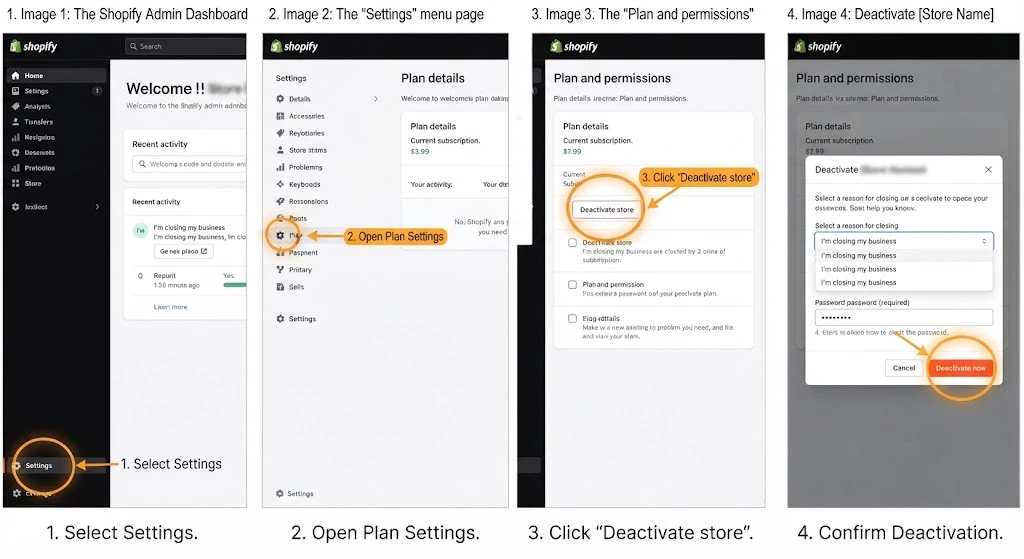
To deactivate your Shopify store, use the desktop Shopify admin with the store owner account. The Shopify mobile app does not provide the same store deletion process.
- Log in to your Shopify admin.
- Select Settings in the bottom-left corner.
- Open Plan. Shopify may display related billing or plan terminology depending on the account.
- Select Deactivate store, Cancel plan, or Cancel trial, based on your current Shopify subscription status.
- Review Shopify’s alternatives, including pause options, and choose to continue if you want to close the store.
- Select a reason for closing the store.
- Click Continue.
- Enter your Shopify account password to confirm ownership.
- Select Deactivate now to complete the process.
The exact button label can vary by plan or trial status, so follow the option Shopify displays inside your current admin.
What Happens After You Deactivate Shopify Store?
After deactivation, customers cannot access your active storefront, and your Shopify subscription stops according to the deactivation process. Shopify retains store data for two years under the supplied guidance, so deactivation does not mean immediate destruction of every stored record.
Shopify automatically uninstalls apps and disconnects custom domains during deactivation. Review external services separately because a third-party provider can continue billing you unless you cancel the external subscription.
Your unique myshopify.com store URL remains permanently locked and cannot be reused for another Shopify store. Keep your exported files because access after closure depends on Shopify’s retention and reactivation rules.
How to Cancel Shopify Subscription Without Losing Your Store
If your main goal is to stop recurring Shopify subscription fees, deactivation is the relevant process. Do not assume that removing products or uninstalling apps cancels your Shopify plan.
Open Shopify admin, go to Settings, select Plan, and review the available cancellation or deactivation option. Complete Shopify’s confirmation steps with the store owner account. Check separate app, domain, payment, and service subscriptions before considering the cancellation complete.
If you plan to rebuild your online store after cancellation, Web Development Agency can help you plan a suitable ecommerce website for your next stage of business.
Can You Remove an Inactive Shopify Store?
Inactive stores from expired trials can remain associated with your Shopify account. The supplied guidance states that a free-trial store without a paid billing method can expire and close automatically.
If several inactive stores still appear when you log in, review the store list and account access options available in your Shopify account. Shopify’s provided guidance does not establish a separate permanent-delete control for every inactive store, so use Shopify Support when the admin does not provide a removal option.
Changed Your Mind? What Now?
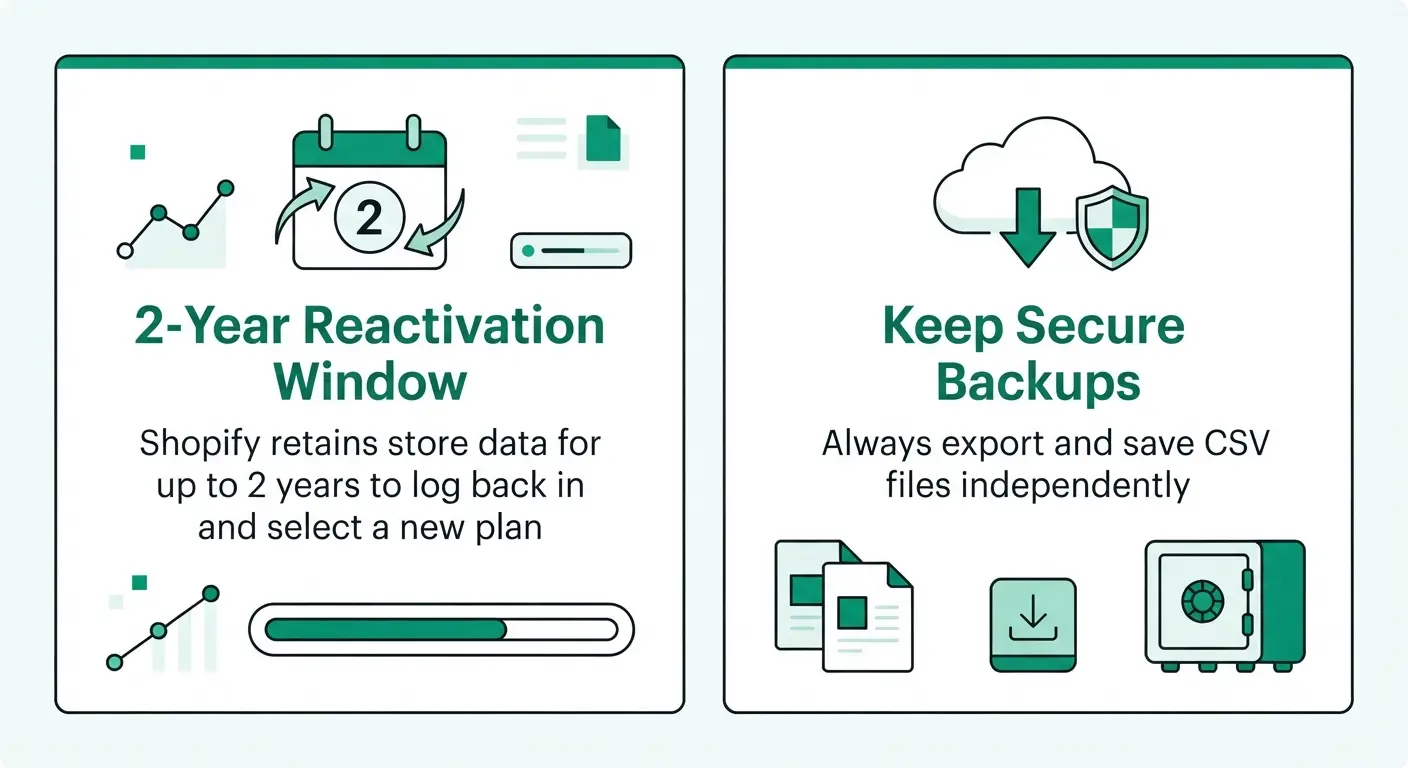
If you deactivate a Shopify store and later decide to return, Shopify’s stated two-year data-retention period provides a reactivation path. Log in and select a new plan within the retention period.
Do not depend on an old store remaining available indefinitely. Keep your exports even when you expect to reactivate, because backups give you independent access to important business information.
What If You Want to Switch Platforms?
You can move your ecommerce business to another platform instead of abandoning your store data. Export products, customers, orders, and other information before deactivation, then prepare the destination platform for migration.
Common alternatives include WooCommerce, BigCommerce, Wix eCommerce, Squarespace, Adobe Commerce, and PrestaShop. The right platform depends on your required customisation, inventory, payment options, SEO needs, and technical resources.
If your business needs custom workflows or functionality beyond standard ecommerce features, web application development may be worth evaluating alongside your platform options.
Shopify Store Cancellation: Final Checklist
Before you deactivate Shopify store access, complete these checks:
- Export products, customers, orders, and reports.
- Save important files and store content.
- Pay outstanding Shopify and app charges.
- Review third-party subscriptions.
- Check domain ownership and renewal settings.
- Confirm whether you need temporary deactivation or permanent closure.
- Keep your exported data in secure storage.
- Confirm the correct store before deactivation.
A careful Shopify store cancellation protects business records and prevents avoidable billing or migration problems.
What You Should Know About Store Data
Store deactivation and permanent Shopify account deletion are separate concepts. Deactivation closes a store while Shopify retains data under its retention period. Account deletion concerns your Shopify account and may require support steps. Protect exported records before either action, especially when orders, customer information, or product information may be needed for future business compliance purposes.
Frequently Asked Questions
How do I permanently delete a Shopify store?
Shopify’s current process uses store deactivation rather than an immediate permanent-delete button. Open Shopify admin, select Settings > Plan, choose Deactivate store, select a reason, continue, enter your password, and confirm Deactivate now. Shopify retains store data for two years after deactivation.
Why can’t I delete my Shopify account?
You may be unable to delete your Shopify account because account-level deletion and store deactivation are different actions. Close the individual store from Settings > Plan first. If inactive stores or account records remain, contact Shopify Support for account-specific removal options.
How do I remove an inactive store from Shopify?
Inactive stores may remain associated with your Shopify account after a trial ends. Shopify’s supplied guidance does not confirm a universal permanent-removal control for every inactive store. Review your store list and contact Shopify Support when the admin provides no removal option.
Can I delete my Shopify store and start over?
Yes, you can deactivate your existing Shopify store and create a new store later, but the original myshopify.com URL cannot be reused. Export products, customers, orders, and other important data before closure so you can rebuild the business without losing essential records.