

Migrating an eCommerce store from WooCommerce to Shopify can simplify store management, security, payments, and scaling when Shopify matches your business requirements. A successful WooCommerce to Shopify migration requires more than exporting products. You must transfer products, customers, orders, categories, media, and relevant metadata, rebuild store functionality, protect Search Engine Optimization (SEO), test transactions, and switch the domain only after quality assurance. A documented migration plan reduces data loss, protects search visibility, and gives your team clear checkpoints for validation before customers use the new store.
Why move from WooCommerce to Shopify?
Shopify provides a more centralized platform for store management, hosting, security, and support. WooCommerce gives you extensive control through WordPress, plugins, themes, hosting, and custom code, but that flexibility creates more maintenance responsibilities.
Shopify provides managed hosting, a built-in SSL certificate, structured administration, payment integrations, customizable themes, and an app ecosystem. Shopify can suit businesses that want fewer infrastructure tasks and a predictable platform for growth.
WooCommerce remains valuable when deep WordPress control, custom development, or extensive plugin-based functionality is essential. Before migration, compare your current plugins, payment gateways, shipping rules, product variants, subscriptions, custom fields, and integrations against Shopify alternatives.
WooCommerce vs. Shopify: What changes after migration?
WooCommerce offers deeper WordPress-level control, while Shopify provides a more managed eCommerce environment. WooCommerce stores can use almost unlimited custom fields and plugin combinations, but compatibility, hosting, updates, and support can require technical management.
Shopify separates store administration from server management. Product collections can use automated rules, themes can be customized, and apps can replace many WooCommerce plugins. Shopify product variants, however, follow Shopify’s own data structure, so complex WooCommerce configurations may require Shopify apps or custom development.
Pricing is another consideration. Shopify uses subscription plans and may charge transaction fees depending on the payment setup and plan. WooCommerce software itself is free, but hosting, premium themes, plugins, maintenance, security, and development create operating costs.
What are the WooCommerce to Shopify migration options?
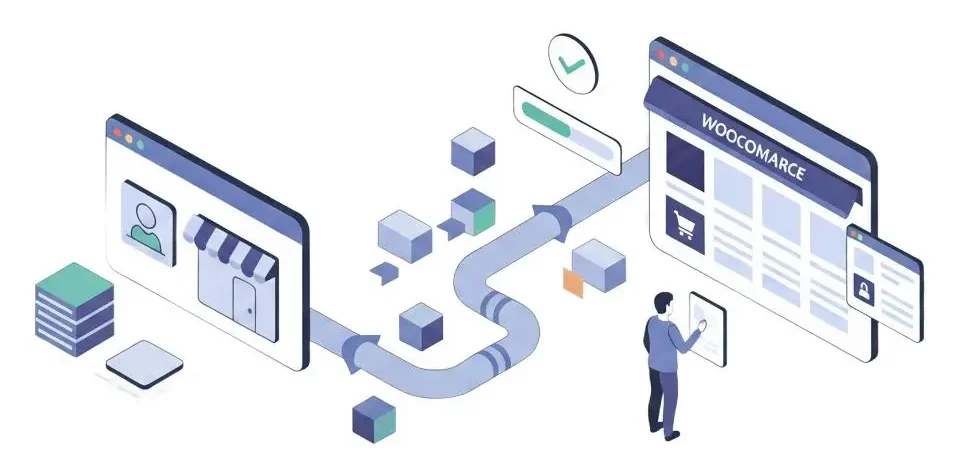
You can migrate manually, use an automated shopping cart migration solution, or hire a developer or agency. Shopify’s available import tools can help with supported data, while specialized migration apps can transfer larger datasets and additional entities.
Manual migration suits smaller stores with straightforward catalogs and gives you direct control over exported files. Automated migration reduces spreadsheet work and can transfer products, categories, customers, orders, discounts, and redirects, but app pricing and mapping limitations vary. An experienced developer or agency is preferable for complex stores, large catalogs, custom functionality, or strict launch deadlines.
How to migrate from WooCommerce to Shopify
1. Back up your WooCommerce store
Create a complete backup before exporting any migration data. Save your WordPress database, media library, product images, theme files, and important configuration data. Keep the WooCommerce store accessible until the Shopify store passes final testing.
A backup gives you a reliable reference for missing records, incorrect product data, or unexpected migration errors. Review the backup before proceeding so you know the recovery files are usable.
2. Audit and prepare your WooCommerce data
Clean your source data before export so unnecessary records do not enter Shopify. Review products, categories, tags, customers, orders, coupons, images, URLs, custom fields, and plugin-dependent data.
Create a migration inventory that identifies every data type you need to retain. Record custom product options, bundles, subscriptions, digital products, tax rules, shipping methods, payment gateways, and third-party integrations. WordPress plugin data does not automatically become equivalent Shopify functionality.
3. Export WooCommerce products and other data
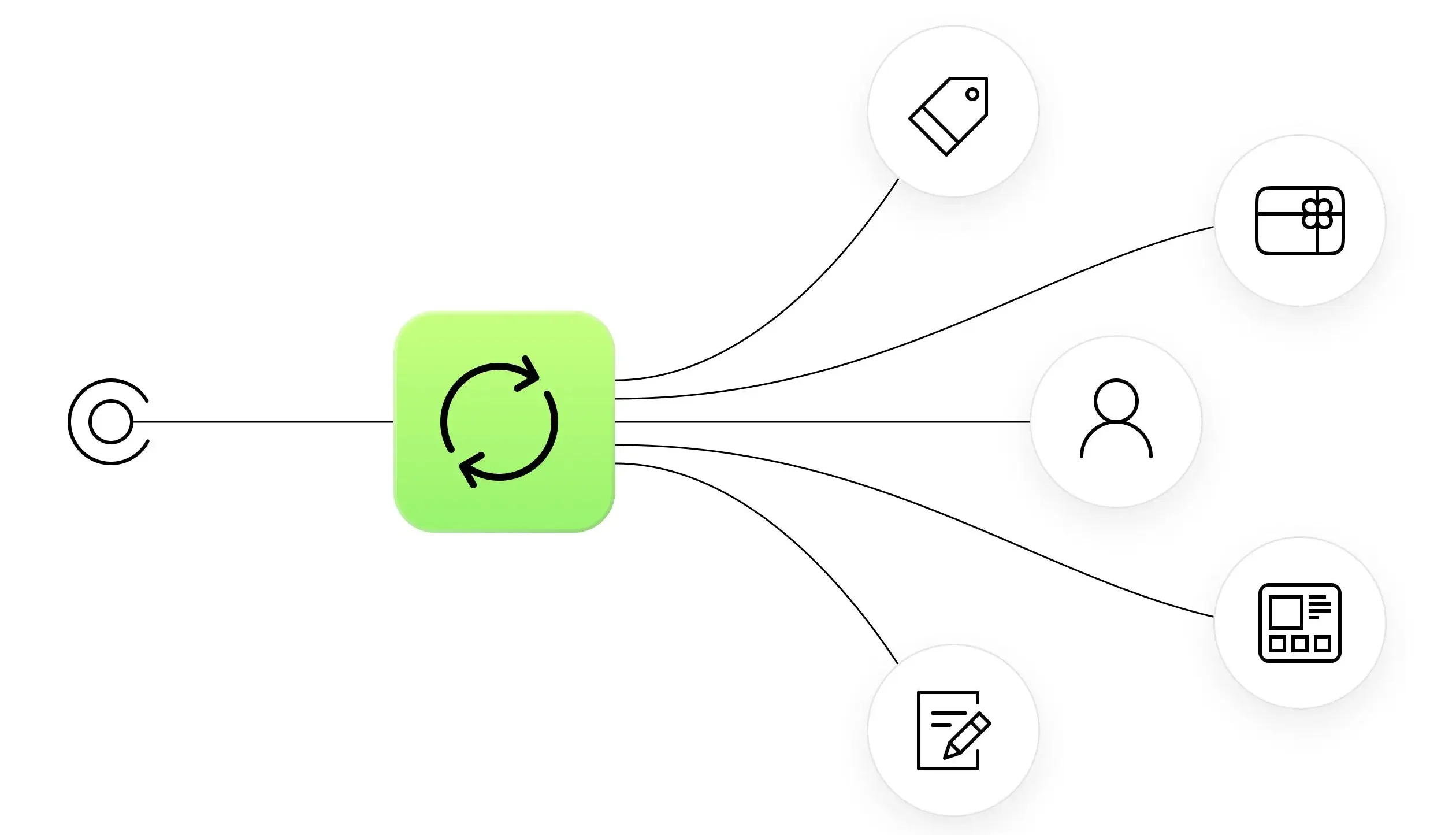
Export products, customers, orders, categories, and other required records into supported formats. WooCommerce can export product data through its administration tools, while specialized exporters can provide greater control over custom fields and large catalogs.
Check product titles, descriptions, SKUs, prices, inventory, images, variants, categories, tags, and attributes after export. Keep separate source files for major data groups because separate validation makes errors easier to identify.
4. Map WooCommerce fields to Shopify
Match every WooCommerce field with the correct Shopify field before importing data. Shopify product imports use defined columns for handles, titles, vendors, descriptions, variants, SKUs, prices, inventory, and other attributes.
Map custom WooCommerce fields to Shopify metafields or rebuild the related functionality through apps or development. Product categories may become Shopify collections, while plugin-specific fields may need manual treatment. Do not assume an exported field has an automatic destination.
5. Import products into Shopify
Run a small test import before moving the complete catalog. Upload a limited group of products, then inspect titles, descriptions, images, variants, SKUs, prices, inventory, collections, and publication status.
A test import can reveal field-mapping problems before thousands of records enter your Shopify store. After validation, import the remaining products through Shopify’s supported tools or a migration app.
6. Migrate customers and orders
Customer passwords do not transfer directly, so customers must reset passwords on Shopify. Import customer names, email addresses, phone numbers, addresses, tags, and other supported information, then validate account counts against WooCommerce.
Historical orders require greater care than product imports. Specialized tools can transfer orders and associated customer data, while manual CSV workflows may not reproduce complete historical order structures. Verify payment status, fulfillment status, refunds, taxes, discounts, and line items after import.
7. Rebuild themes, apps, and store functionality
WooCommerce themes and WordPress plugins do not transfer automatically to Shopify. Select a Shopify theme and recreate navigation, product templates, collection pages, checkout-related settings, content pages, forms, tracking, and custom functionality.
Replace essential WordPress plugins with Shopify apps or custom development. Recreate subscriptions, reviews, bundles, product customization, analytics, email integrations, and other business-critical features before launch.
When rebuilding custom store features, understanding the difference between a website and web app can help you identify which functionality requires a standard storefront and which needs more advanced application logic.
8. Set up SEO redirects and preserve URLs
Create 301 redirects from important WooCommerce URLs to their corresponding Shopify URLs. WooCommerce and Shopify use different URL structures, especially for products and categories or collections.
Build an old-to-new URL mapping file that includes product pages, category pages, informational pages, blog posts, and other pages with organic traffic or backlinks. Configure Shopify URL redirects before launch and test priority URLs. Update internal links, canonical references, XML sitemap expectations, and Search Engine Optimization elements where required.

9. Configure Shopify store settings
Rebuild shipping, taxes, payments, domain settings, markets, notifications, and checkout configuration before launch. Confirm every setting against the WooCommerce store and current business requirements.
Review payment gateways, shipping zones, rates, tax rules, inventory locations, customer notifications, staff permissions, analytics, and third-party integrations. Confirm that payment and fulfillment workflows match operational requirements.
10. Test and launch the Shopify store
Test the complete customer journey before changing the live domain. Place test orders, verify payments, calculate shipping and taxes, test discounts, review inventory changes, inspect product variants, confirm emails, and test mobile and desktop layouts.
Check your highest-traffic pages, redirects, internal links, forms, search functionality, collection filters, and checkout. Fix errors before launch. Then point your domain to Shopify and keep the WooCommerce store available as a controlled backup until the new store proves stable.

How long does WooCommerce to Shopify migration take?
A small migration can take one to three days, while complex stores can require a week or longer. Time depends on product volume, variants, order history, custom fields, integrations, content, redirects, and testing requirements.
A migration app can reduce manual work, while custom stores require additional development and quality assurance. Do not set a launch date based only on data import time; testing and SEO validation are essential parts of the migration.
Should you hire a developer or agency?
Hire an experienced Shopify developer or agency when your store has complex data, custom functionality, thousands of products, or a high-risk launch. An experienced team specializing in Shopify website development can help rebuild store functionality, configure integrations, and prepare the new storefront for launch.
DIY migration can work for a small catalog with standard products and limited integrations. Before hiring, verify Shopify and WooCommerce experience, migration examples, security practices, reviews, scope, and post-launch support.
Before selecting a migration partner, review Web Development Agency and evaluate whether its services match your store’s technical requirements and launch goals.
Final checklist before launch
Confirm data, functionality, SEO, payments, and customer workflows before switching your domain. Verify:
- Products, variants, images, SKUs, prices, and inventory
- Customers, password-reset communication, and order history
- Collections, navigation, content, apps, and theme functionality
- 301 redirects and priority organic landing pages
- Shipping, taxes, payments, discounts, and notifications
- Analytics, tracking, mobile layouts, checkout, and test orders
A controlled migration protects revenue, customer experience, and organic visibility while moving your store to Shopify.
Frequently Asked Questions
Is it better to use WooCommerce or Shopify?
Shopify is better for businesses that want managed hosting, centralized support, security, and simpler store administration. WooCommerce is better when WordPress flexibility, custom development, and extensive plugin control are priorities. Your choice should match operational needs, technical resources, functionality, and long-term growth plans.
Can we migrate from WordPress to Shopify?
Yes, you can migrate a WordPress-based WooCommerce store to Shopify by exporting and importing supported data. Products, customers, orders, images, categories, and selected metadata require separate validation, while themes, plugins, custom functionality, and passwords require rebuilding or alternative Shopify solutions.
What is the disadvantage of Shopify?
Shopify’s main disadvantages are recurring subscription costs, potential transaction fees, platform-specific limitations, and dependence on apps for some advanced functionality. Businesses with highly customized product structures or WordPress-specific features may need paid apps, custom development, or process changes after migration.
Which one is better, WordPress or Shopify?
Shopify is better for managed eCommerce operations, while WordPress with WooCommerce is better for maximum customization and content control. Shopify reduces infrastructure management, whereas WordPress offers broader plugin and code flexibility. Choose based on technical capability, functionality, maintenance requirements, budget, and growth strategy.